
Multi Board Kanban Documentation
Comprehensive guide to consolidating, organizing, and executing work across multiple monday.com boards from a single unified Kanban command center.
Introduction
Multi Board Kanban consolidates items from multiple monday.com boards into a single, interactive Kanban command center. Install it directly from the monday.com Marketplace listing or add it with the 1-click installer.
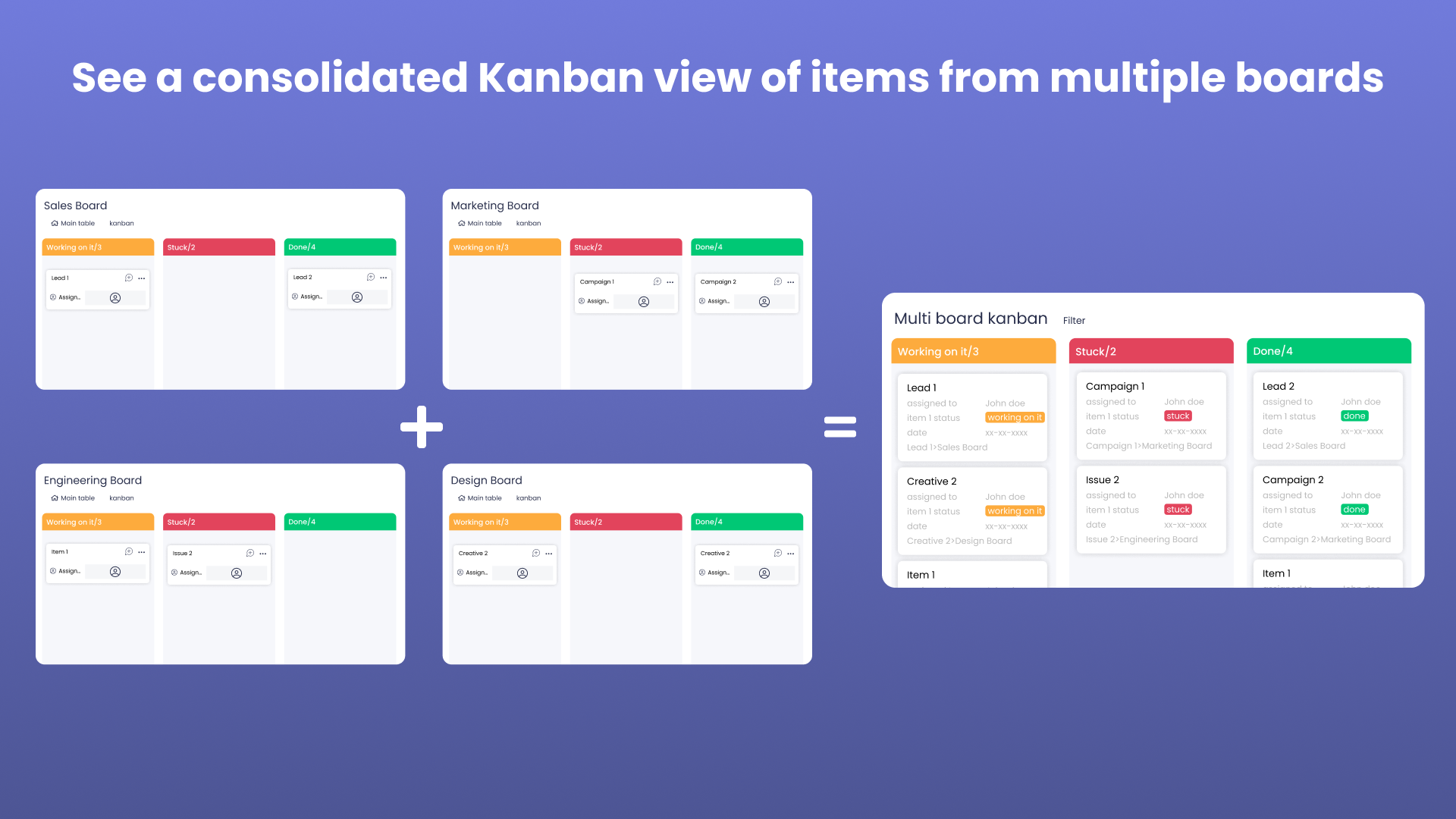
Instead of opening five separate board tabs to understand what work is in flight, you can pull cards across projects, departments, or clients into one prioritized view, organize them by status or any other column, and drag items between stages with changes immediately syncing back to monday.com.
Why Multi Board Kanban?
Agencies, engineering squads, and operations teams often split work across dedicated boards:
- Client or project boards isolating distinct deliverables
- Functional queues (e.g. Design, Development, QA)
- Sprint or cycle boards rolling up quarterly roadmaps
While isolated boards keep data organized, seeing the entire picture usually requires hopping between tabs, hoping nothing moved in the background. Standard monday.com dashboard widgets provide read-only rollups, but cannot replace a full interactive Kanban.
Multi Board Kanban gives you:
- Bi-directional live updates: drag a card in the Kanban, and its status, group, or custom column changes on the underlying source board.
- Cross-board aggregation: connect 2 to 50+ boards into one unified board surface.
- Deep customization: group by any column type (Status, People, Dropdown, Date, etc.) and stack a second dimension using Swimlanes.
- Flexible placement: add it as a Board View, a Dashboard Widget, or an Item / Custom Object View.
Getting Started
Follow these steps to install Multi Board Kanban and create your first consolidated board view.
Installing from the monday.com Marketplace
- Open the Marketplace: In monday.com, click the Apps icon in the left navigation or open the Marketplace from your profile menu, or visit the Multi Board Kanban Marketplace listing directly.
- Search for Multi Board Kanban: Search for Multi Board Kanban (published by ThoughtFlow Technologies) and click Add to your account, or launch the 1-click marketplace installer.
- Authorize permissions: Review and grant the required OAuth scopes (
boards:read,boards:write,users:read,account:read,me:read). These allow the app to read board structures and update items when you drag them.
Where You Can Add the App
Multi Board Kanban supports three view surfaces depending on how your team works:
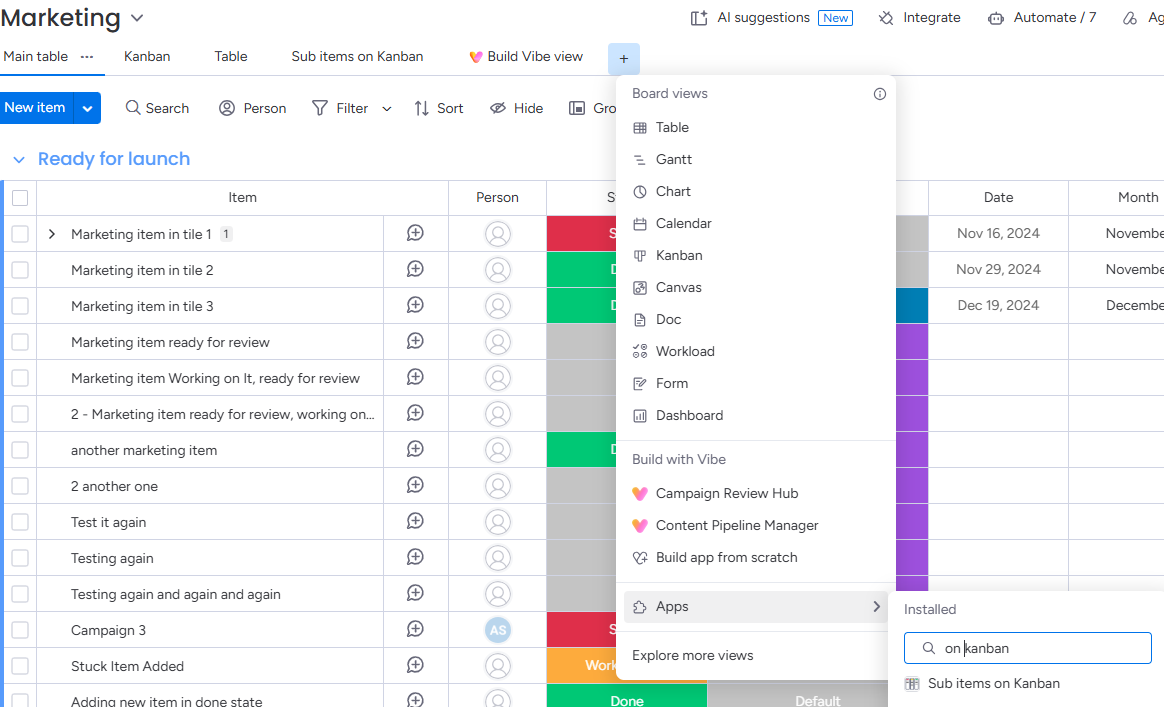
- Board View: Add as a tab at the top of any monday board. Best when one main board serves as your team's home base and you want to pull in items from supporting boards. Note: The source board is automatically locked to the host board.
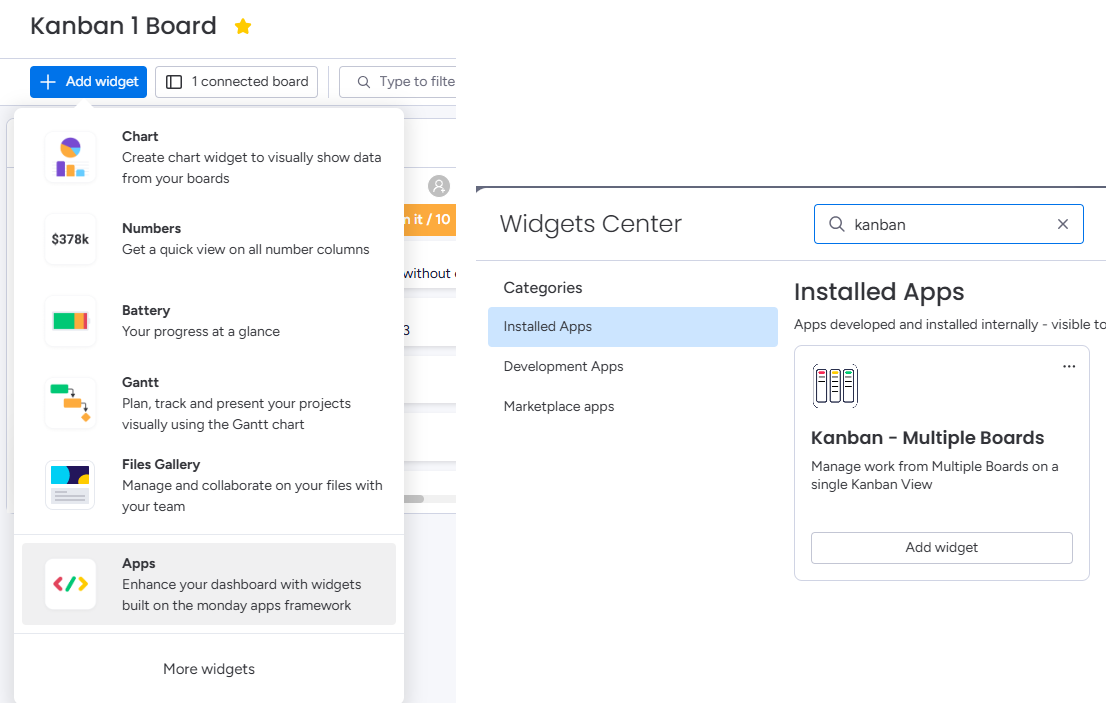
- Dashboard Widget: Add to any monday.com Dashboard. Ideal for cross-team oversight, leadership rollups, or multi-project command centers. Note: Connected boards are configured via monday's native widget settings rather than the in-app drawer. Dashboard widgets are also subject to monday.com's tier-level board limits (e.g. 20 boards on monday Pro, 50 boards on Enterprise).
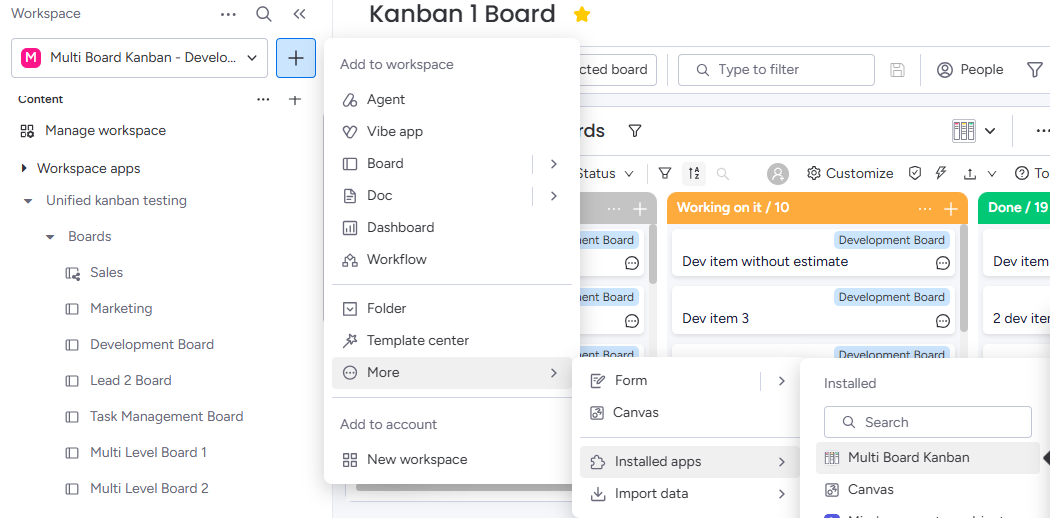
- Custom Object / Workspace View: Use the standalone full-page view to assemble boards freely across workspaces using the in-app Source Boards drawer. (Recommended for dedicated team command centers). Note: Unlike Dashboard Widgets, Custom Object Views have no monday tier board limits — you can connect as many boards as your Multi Board Kanban plan allows.
See Where Board Selection is Available in the Selecting Source Boards chapter for details on how board selection differs across these surfaces.
Quick Setup Wizard
When you open Multi Board Kanban for the first time, a setup wizard walks you through:
- Selecting your source boards
- Choosing your Anchor Column (the column that forms your Kanban lists)
- Selecting and reordering list stages
- Configuring card field visibility
- Optionally enabling Swimlanes
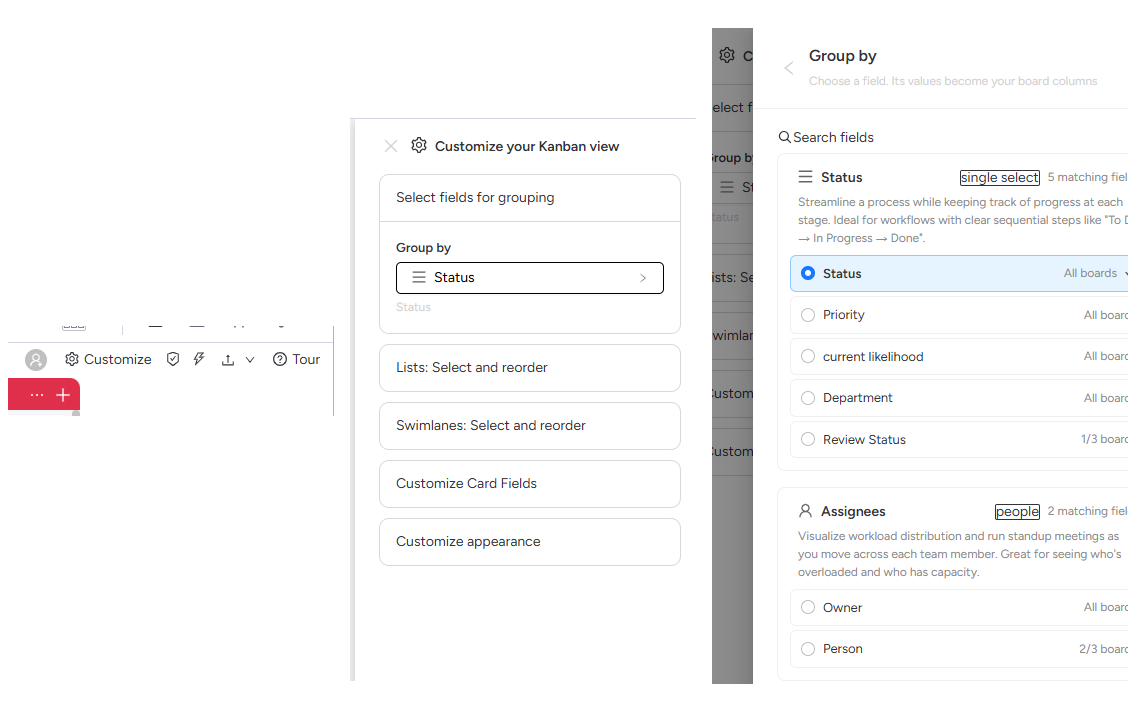
Selecting Source Boards
Multi Board Kanban lets you connect multiple boards into one synchronized view.
Where Board Selection is Available
How source boards are selected depends on which monday.com surface you are using:
| View Surface | Board Source | Source Boards Drawer | How to Change Boards | monday.com Board Limit |
|---|---|---|---|---|
| Custom Object / Workspace View | In-app user selection | Available (clickable chip & drawer) | Click the Board Count toolbar chip or open Customize → Boards | No monday tier limit (up to your app plan) |
| Dashboard Widget | monday.com dashboard context | Not available (static text) | Edit the widget settings in monday.com to select connected boards | Limited by monday plan (20 on Pro, 50 on Enterprise) |
| Board View | monday.com board context | Not available (static text) | Always bound to the host board tab | 1 board (host board) |
Why the Source Boards Drawer only works in Custom Object View
In Board View and Dashboard Widget, monday.com injects board IDs directly through its embedded platform context (boardId or boardIds). Because monday.com is the authoritative source of truth for which boards belong to that host tab or dashboard widget, the app's manual Source Boards drawer is disabled and the toolbar board counter displays as static text.
Additionally, Dashboard Widgets are constrained by monday.com plan limits on how many boards a dashboard can connect to (typically 20 boards on monday.com Pro and 50 boards on Enterprise). In contrast, Custom Object / Workspace Views have no monday tier constraints, allowing you to combine boards up to your Multi Board Kanban subscription tier.
To assemble custom collections of boards across arbitrary workspaces with full in-app board picking and no dashboard board ceilings, create a Custom Object / Workspace View.
The Source Boards Drawer (Custom Object View)
Click the Board Count chip in the toolbar (e.g. 42 items from 3 boards) or open Customize → Boards to open the Select your source boards drawer.
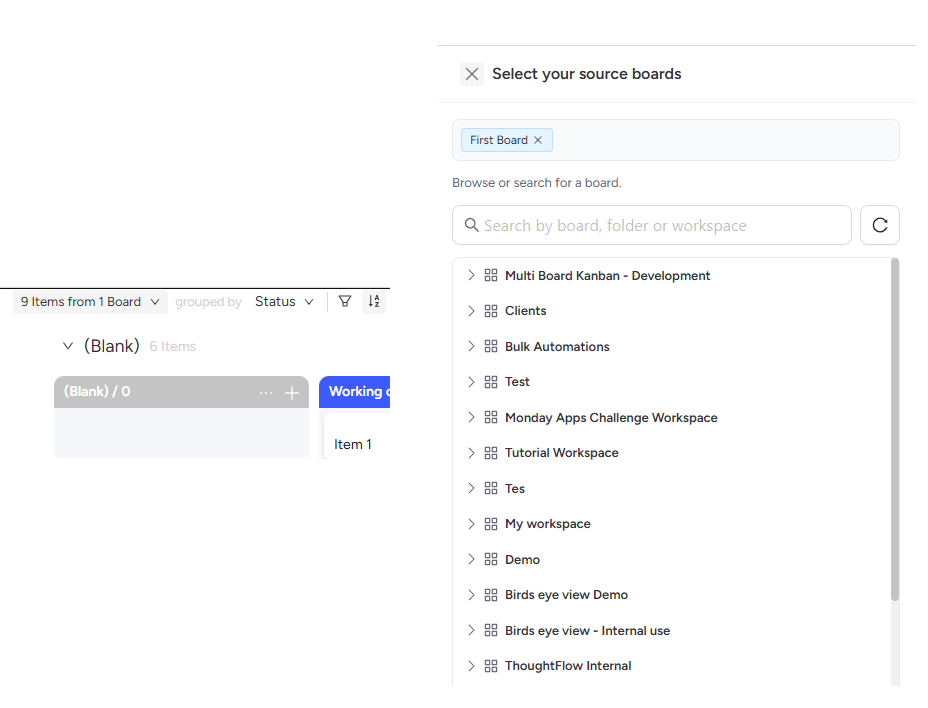
From here you can:
- Search boards across your monday.com account by name or workspace
- Select or deselect individual boards
- Click Load N board(s) to refresh the Kanban view
Board Count indicator
When filters are active, the board counter updates to show both filtered and total counts (for example, 12 / 42 items from 3 boards).
Adjacent & Sub-item Board Discovery
Multi Board Kanban automatically discovers and surfaces related boards:
- Sub-item boards: If your boards use monday.com sub-items, the app automatically detects the sub-item boards and rolls up sub-items as cards.
- Connected boards: Columns referencing other boards via Connect Boards columns are automatically matched.
Multi-Level Boards (MLB)
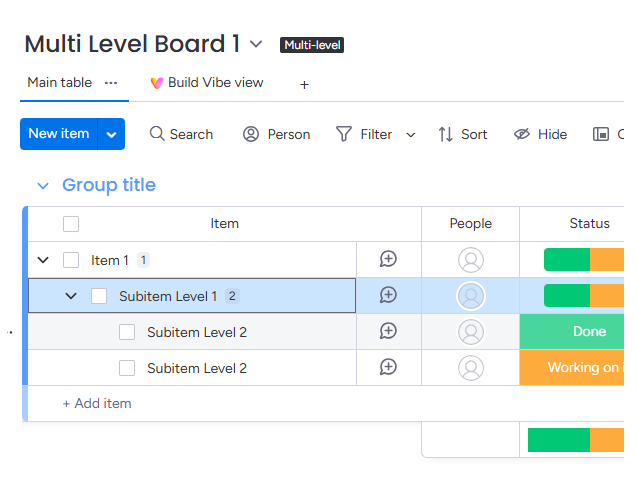
When working with complex project hierarchies (parents, sub-items, and rollup statuses):
- Child cards display a parent indicator badge with the parent item name.
- Parent items showing calculated rollup statuses cannot be moved into non-matching stages directly; an informational modal explains when a parent rollup is locked.
Grouping and Lists
Columns on your Kanban are driven by the Anchor Column you choose.
Choosing an Anchor Column
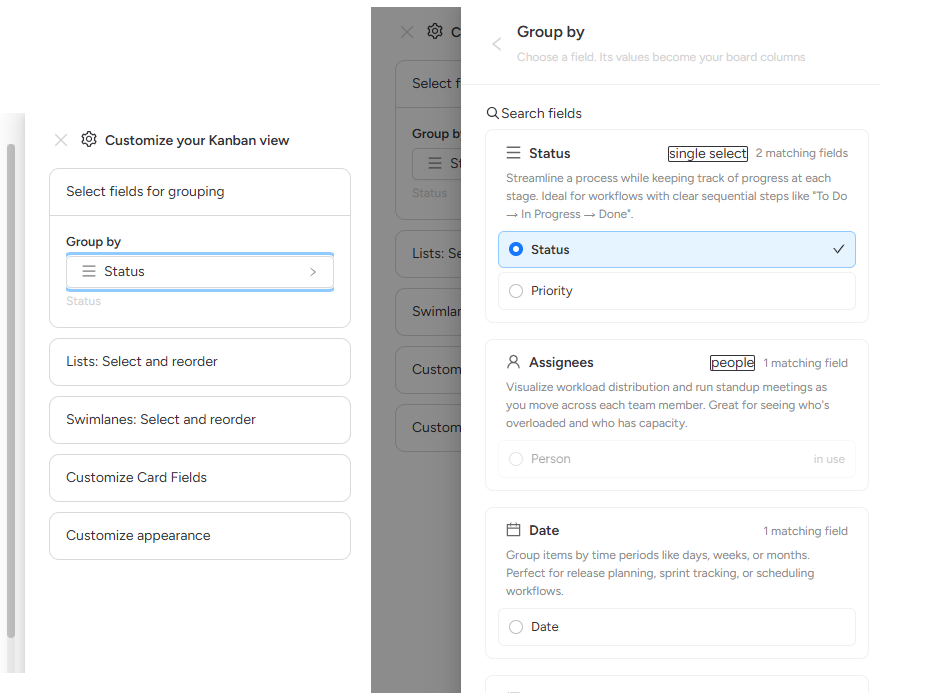
In the toolbar, click grouped by [Column Name ↓] or open Customize → Anchor Selection to pick the field that forms your Kanban columns.
Multi Board Kanban supports almost every monday.com column type:
- Status: Standard workflow stages (e.g. To Do, In Progress, Done)
- People: Arrange work by assignee or team member
- Date & Timeline: Group tasks into upcoming schedules or milestones
- Dropdown & Tags: Categorize by sprint, priority, or client
- Groups: Represent the board's native group sections as Kanban lists
- Boards: Use each connected board as its own list
- Text, Long Text, Formula, and Mirror columns
List Customization
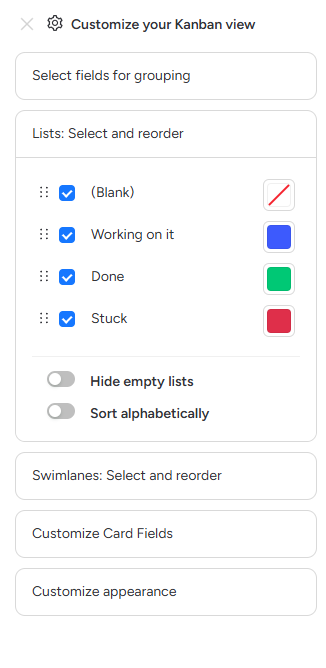
Open Customize → List Segment Selection to manage each column on the Kanban:
- Reorder: Drag lists left or right to change the workflow sequence.
- Show / Hide: Toggle visibility for stages you don't need to see (e.g. hide Archived or Cancelled).
- Custom colors: Assign distinct color accents to list headers.
- Blank container: Items without a value in the anchor column automatically land in the
(Blank)list. - Earlier container: For date-based groupings, past items gather in an
Earlierbucket.
Swimlanes
Swimlanes add a second horizontal dimension across your Kanban columns, creating a powerful matrix view.
Enabling Swimlanes
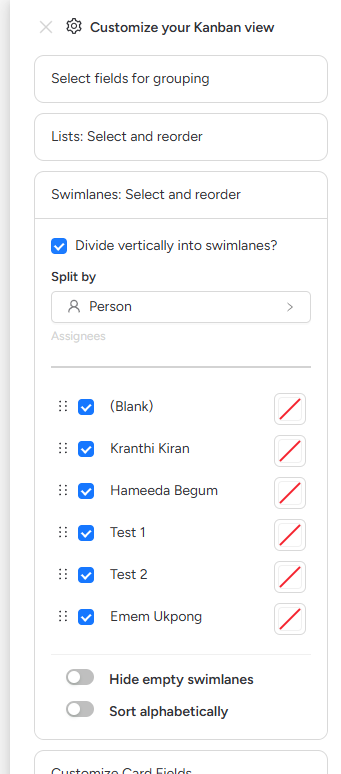
Open Customize → Lane Segment Selection and toggle Enable Swimlanes.
Choose any secondary column to create horizontal rows:
- By Owner / Assignee: See what each team member has in To Do, In Progress, and Done.
- By Priority: Split High, Medium, and Low items across columns.
- By Client or Project: Isolate customer queues while preserving a single workflow.
- By Source Board: Keep boards separated into swimlanes while seeing unified status columns.
Configuring Lane Segments
Just like Kanban lists, swimlane segments can be customized:
- Reorder: Move important swimlanes to the top.
- Hide / Show: Collapse or hide empty or completed lanes.
- Max Height: Set a maximum pixel height (100px - 2000px) per lane with internal scrolling so large lanes do not stretch your page.
- Vertical Spacing: Adjust padding between swimlanes to fit more information on screen.
Cards
Cards represent monday.com board items and can be customized to show the exact context your team needs.
Card Properties & Fields
Open Customize → Card Field Selection to choose which column values appear on card faces:
- Title: Always shown as the primary card heading
- Assignee Avatars: Displays team member photos or initials
- Due Dates & Timelines: Highlights upcoming or overdue deadlines
- Status Badges: Secondary status pills (e.g. QA status on a board grouped by Developer)
- Tags, Numbers, and Text fields
Source Board & Parent Indicators
When items are aggregated across multiple boards, cards show a small metadata header indicating:
- The source board name
- The parent item name (when the card is a sub-item)
Item Updates & Comments
Click the Comment / Chat icon on any card to open the monday.com native Item Updates dialog directly inside the view. You can reply to comments, tag team members, and review activity history without leaving the Kanban.
Commenting toggle
You can show or hide the comment button across all cards in Customize → Appearance Customization.
Drag and Drop
Multi Board Kanban provides smooth, physics-aware drag-and-drop powered by @dnd-kit.
Moving Cards Across Stages
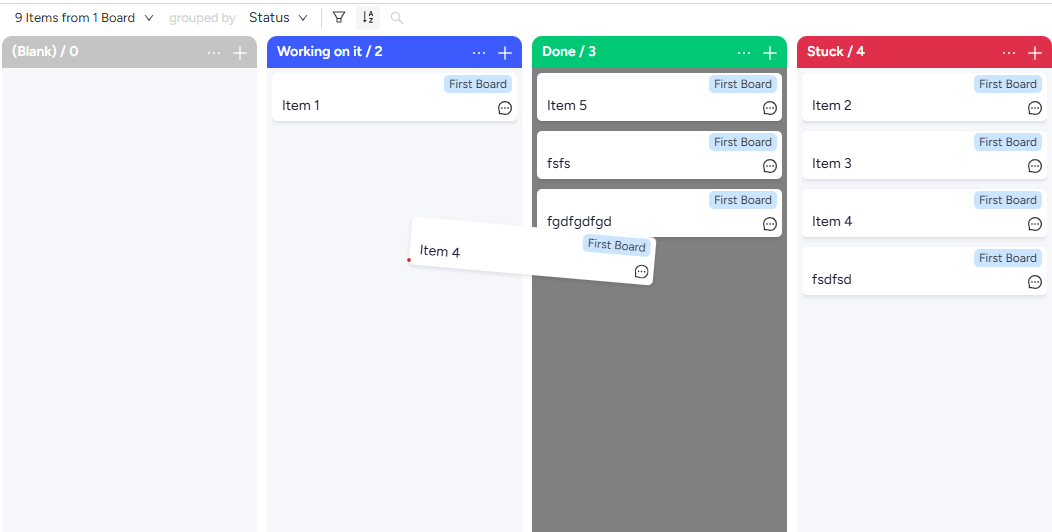
- Drag between lists: Dragging a card to a new column instantly updates its anchor column value on the underlying monday.com board (e.g. changing status from In Progress to Done).
- Drag between swimlanes: Dragging across swimlane rows updates the secondary lane field as well.
- Reordering inside a list: Cards maintain order within the column.
Multi-Board Write-Back
When you move a card:
- Multi Board Kanban identifies the item's original source board.
- It sends an update mutation to monday.com using your user's permissions.
- Board automations, notifications, and webhooks configured in monday.com fire normally.
Locked Items & Drop Validation
Some items cannot be moved to certain columns:
- Parent Rollup Statuses: If a parent item's status is computed from its sub-items in monday.com, dragging it directly is blocked. The app displays an informational modal explaining why the drop was prevented.
- Permission Restrictions: If your monday.com user lacks edit permission on a specific board or column, the card snaps back to its original position with an error toast.
Manual Sorting
In the Sort panel, enable Allow manual sorting when your default sort is set to Last updated / Latest first to arrange cards freely by drag-and-drop.
Filtering, Sorting, and Search
Refine your view so each team member sees the exact queue that matters to them.
Filtering Items
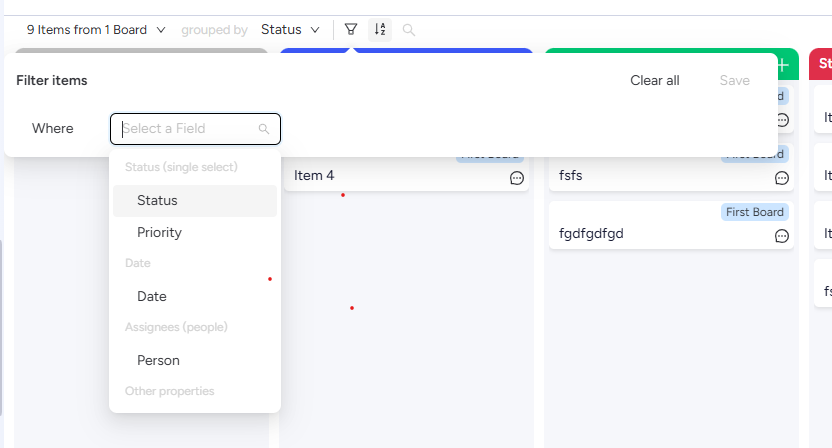
Click the Filter button in the toolbar to open the Filter items panel:
- Multi-condition filtering: Add multiple filter rules joined by AND / OR conditions.
- Column-aware operators: Filter status by selected labels, people by assigned user, dates by ranges (Today, This Week, Past Due), and numbers by greater/less than.
- Cross-board filter resolution: Filters apply cleanly across all boards, even if column names differ slightly.
- Saved filters: Save your current filter setup under a custom name, switch between saved views in the dropdown, or set a default.
Sorting Items
Click the Sort button in the toolbar to open the Sort items panel:
- Multi-criteria sort: Add multiple sort layers (e.g. Priority Descending, then Due Date Ascending).
- Ascending / Descending: Toggle direction per column.
- Default sorting: By default, items sort by Last updated (chronological, latest first).
Instant Search
Use the Search input in the toolbar to perform instant text searches across:
- Item titles
- Card description and text columns
- Source board names
- Tag and dropdown labels
Appearance
Fine-tune the typography, dimensions, and spacing of your Kanban board to fit your screen and team preferences.
Layout Dimensions
Open Customize → Appearance Customization to adjust:
| Setting | Range | Default | Description |
|---|---|---|---|
| Card width | 50px - 1000px | 300px | Width of every Kanban column |
| List spacing | 0px - 200px | 10px | Horizontal gap between columns |
| Swimlane spacing | 0px - 200px | 10px | Vertical padding between swimlane rows |
| Max swimlane height | 100px - 2000px | 500px | Max height of a swimlane before scrolling |
| Card spacing | 0px - 30px | 8px | Vertical gap between cards in a list |
Typography & Display Options
- Card font size: Choose from 10px to 24px (default
14px). - Line spacing: Adjust text density between 1.0 and 3.0.
- Card font color: Switch between high-contrast dark, medium, or custom colors.
Feature Toggles
- Item Count: Toggle the item counter chip shown in each list header.
- Commenting: Show or hide the quick comment button on cards.
- Adding Items: Enable or disable the
+ Add Itembutton inside lists. - Custom container labels: Rename the
(Blank)andEarlierstage titles to match your team's terminology.
View Presets and Administration
Account admins can standardize board structures, manage shared view layouts, and export reports.
Administration Drawer
Click the Administration (shield icon) button in the toolbar to access administrative tools:
View Presets
Save, preview, and apply board-agnostic configuration templates across your entire monday.com account:
- Save current view as preset: Captures column selections, swimlane setups, card fields, and appearance settings.
- Account-wide sharing: Allow any team member to load the preset into their own board views with one click.
- Apply or update presets: Keep multiple project boards looking identical.
Board Standardization
When consolidating multiple boards created by different teams, column titles and status labels can drift (e.g. Status vs State, or In Review vs Under Review).
The Board Standardization tool:
- Scans all connected boards for structural mismatches
- Highlights missing columns or unmapped status labels
- Offers one-click fixes to align board schemas
Export to PDF
Click Export → Export to PDF in the toolbar to generate a high-resolution, print-ready landscape PDF of your current Kanban board, respecting all active filters, groupings, and swimlanes.
Sync, Permissions, and Data
Multi Board Kanban uses a secure hybrid architecture combining monday.com and Convex backend services.
Realtime Sync
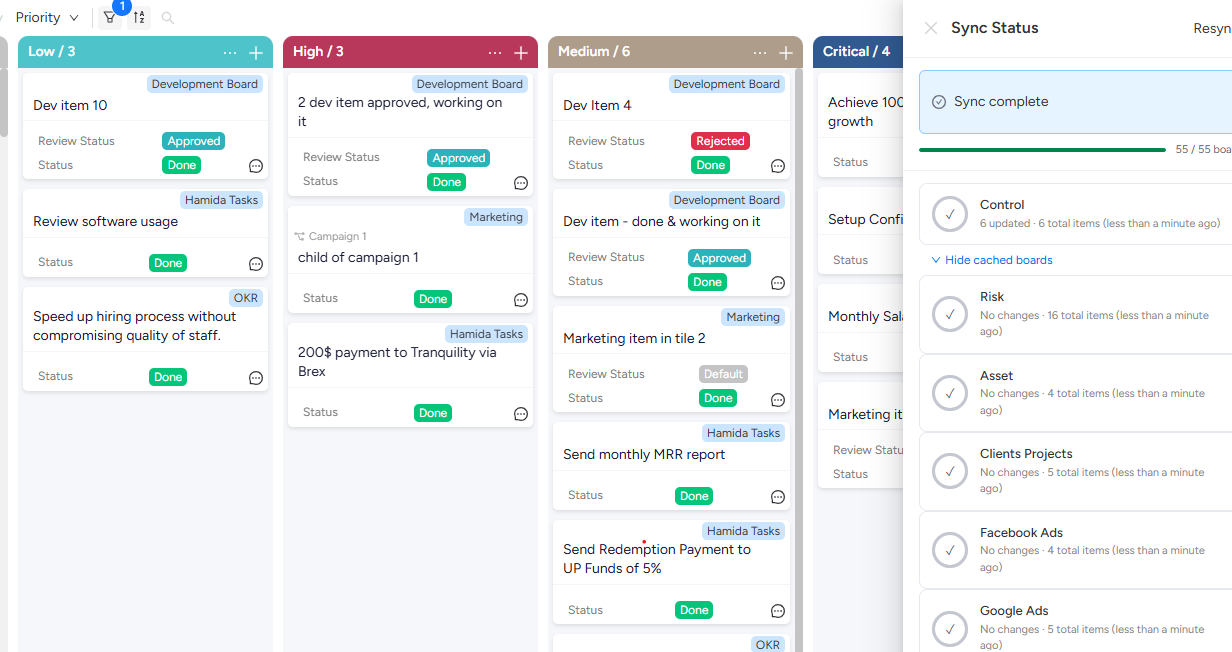
On supported paid plans, Multi Board Kanban maintains real-time synchronization:
- Webhook listeners: Changes made by other team members directly in monday.com boards push updates to your Kanban view in real-time.
- Manual Sync: Click the Sync button in the toolbar anytime to perform an on-demand cache refresh.
- Sync status warning: If realtime sync is paused or disabled on your account, a status chip appears in the toolbar with details.
Security and Data Storage
- monday.com is the single source of truth: Your board items, column values, and updates remain securely stored inside your monday.com account.
- No permanent item retention: Multi Board Kanban caches structure and item IDs in an isolated Convex database solely to power fast querying, filtering, and cross-board aggregation.
- OAuth authentication: All actions are performed using monday.com signed session tokens; the app only accesses boards your monday.com user has permission to see.
Permissions & Scopes
When installing the app, monday.com prompts you for:
me:read: Identifies the active userboards:read&boards:write: Reads board columns and updates items when draggedusers:read: Populates assignee photos and names on cardsaccount:read: Verifies workspace and account tier entitlements
Plans and Limits
Multi Board Kanban offers flexible tiers tailored for teams of all sizes, with unlimited users across every plan.
Plan Comparison
| Plan | Monthly Price | User Seats | Boards / View | Saved Views | Realtime Sync |
|---|---|---|---|---|---|
| Free | $0 | Unlimited | 3 boards | 2 views | — |
| Starter | $9 | Unlimited | 10 boards | 5 views | Included |
| Pro | $19 | Unlimited | 25 boards | 10 views | Included |
| Premium | $49 | Unlimited | 50 boards | 25 views | Included + Sharing |
monday.com Dashboard Limits vs Custom Object View
When using Multi Board Kanban as a Dashboard Widget, monday.com enforces its own platform caps on connected boards per dashboard (e.g. 20 boards on monday.com Pro, 50 boards on Enterprise). When using a Custom Object / Workspace View, monday.com imposes no such limitations, meaning you can connect as many boards as your Multi Board Kanban plan supports.
14-Day Free Trial
All paid tiers include a 14-day free trial through the monday.com marketplace so your team can test realtime sync and higher board limits with zero risk.
Upgrading or Changing Plans
Billing is handled directly through your monday.com account:
- Open the Administration drawer in Multi Board Kanban.
- Click Billing & Plan.
- Select your desired tier to complete the upgrade via the monday.com marketplace billing portal.
Troubleshooting
Answers to common questions and solutions for unexpected behavior.
Frequently Asked Questions
Why does a dragged card snap back to its original column?
When you drop a card into a column and it immediately snaps back to its starting position, the app displays a modal titled "Cannot drop item here" explaining why the drop was prevented. The most common causes are:
- Missing status label or dropdown tag on the source board: A Kanban column appears in the unified view if any connected board defines that status or dropdown value. However, an item can only move to a column if its own source board has that exact label. Multi Board Kanban matches labels by exact text (kebab-cased). For example, if Board A has
In Reviewand Board B only hasUnder Review, dragging a Board B card intoIn Reviewwill fail because Board B lacks that label.- Fix: Open Administration → Board Standardization (shield icon). The standardizer automatically scans your connected boards for
MISSING_SEGMENTanomalies and lets you add the missing label to the source board with a single Fix click.
- Fix: Open Administration → Board Standardization (shield icon). The standardizer automatically scans your connected boards for
- Missing column on the source board: If the anchor column (e.g. Sprint or Priority) does not exist on that item's source board at all, the card cannot be updated. Use Administration → Board Standardization to create the missing column on the board.
- Locked rollup status (parent items with sub-items): If a parent item's status is computed from its sub-items in monday.com, it cannot be dragged manually. An informational notice will explain that the parent status is locked by rollup calculations.
- Board permissions: Your monday.com user must have write/edit access on the card's source board to update item values.
Can I connect boards from different workspaces?
Yes. When using a Dashboard Widget or Custom Object View, you can select boards across any workspace you have access to.
Why can't I change which boards appear in my Board View or Dashboard Widget?
The source boards drawer is only active in Custom Object / Workspace Views.
- Board View: The app is installed directly on a specific monday.com board tab and is permanently bound to that host board.
- Dashboard Widget: monday.com's dashboard platform controls the board selection. The widget receives its connected boards directly from monday.com's widget settings context. To change which boards appear, open the widget settings in monday.com, adjust the board picker, and reload the widget.
If you need a dedicated, interactive view where you can search, select, and manage arbitrary collections of boards across workspaces at any time using the in-app drawer, add Multi Board Kanban as a Custom Object / Workspace View.
Will uninstalling the app delete my board data?
No. Multi Board Kanban only stores view configurations and temporary cache. All your board items, updates, and columns remain untouched in your monday.com account.
Getting Support
Need help, have a question, or want to explore advanced multi-board workflows?
- Marketplace & Installation: View the Multi Board Kanban Marketplace listing or launch the 1-click installer.
- Live Chat: Click the chat bubble in the bottom-right corner of this website or inside the Multi Board Kanban monday.com app for immediate assistance.
- Book a Call: Schedule a free onboarding or support call with our team to walk through setup, view architecture, or troubleshooting.
- Contact Support: Reach out directly by email at contact@thoughtflow.io.
- Feature Feedback: Submit requests or vote on upcoming features at our Feedback Portal.