
Multi Board Automations Documentation
Guide to writing one monday-style automation and applying it across selected boards, with column matching, recommendations, and run history.
Introduction
Multi Board Automations lets you write one monday-style rule and apply it to every selected board. Each board runs the rule independently when its own events fire. Columns match by title and type, so boards do not need identical column IDs.
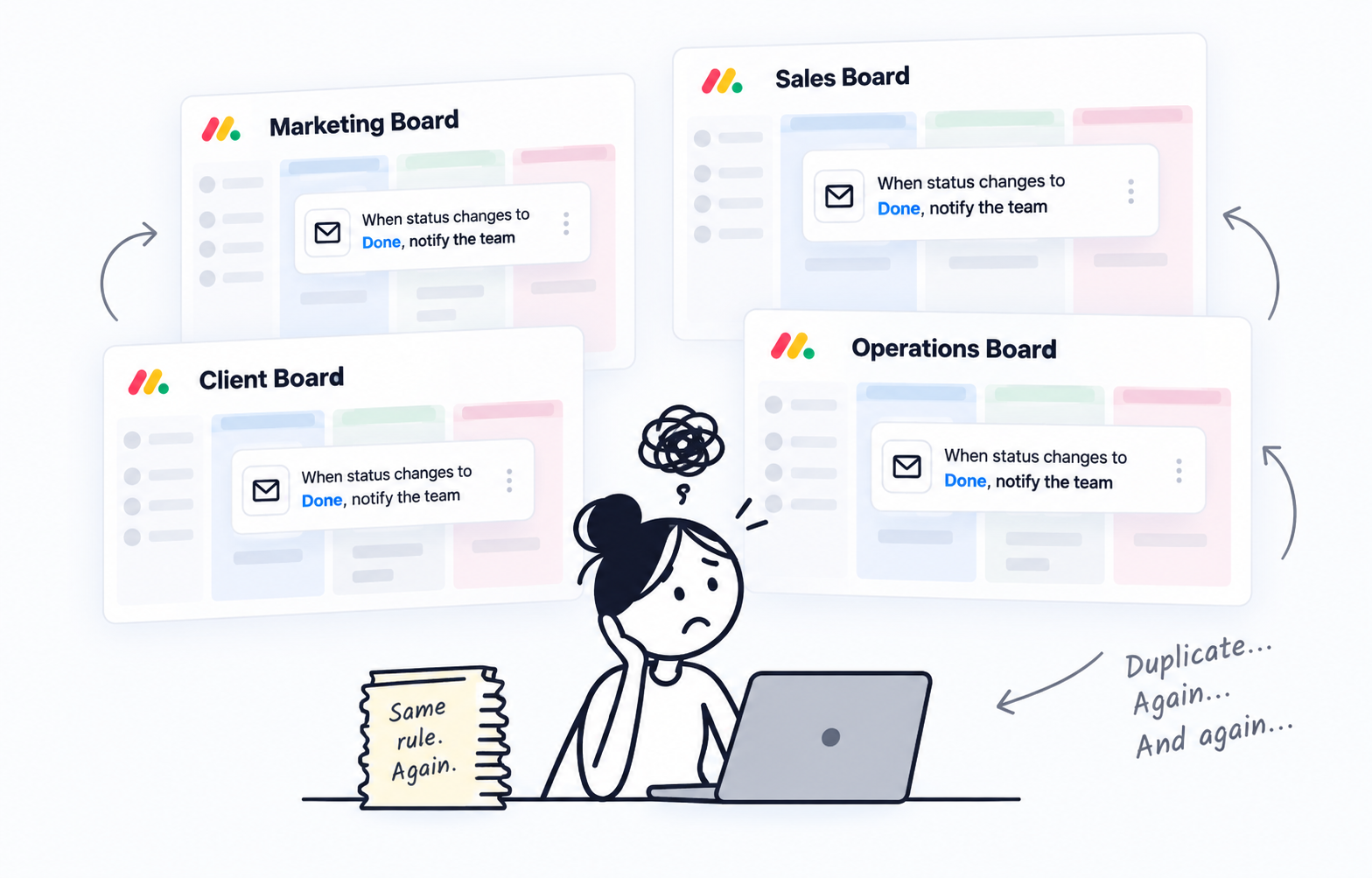
Teams clone similar boards for clients, squads, or regions. Native monday.com automations are per-board and count toward the monday.com action quota, so the same recipe is rebuilt on every copy.
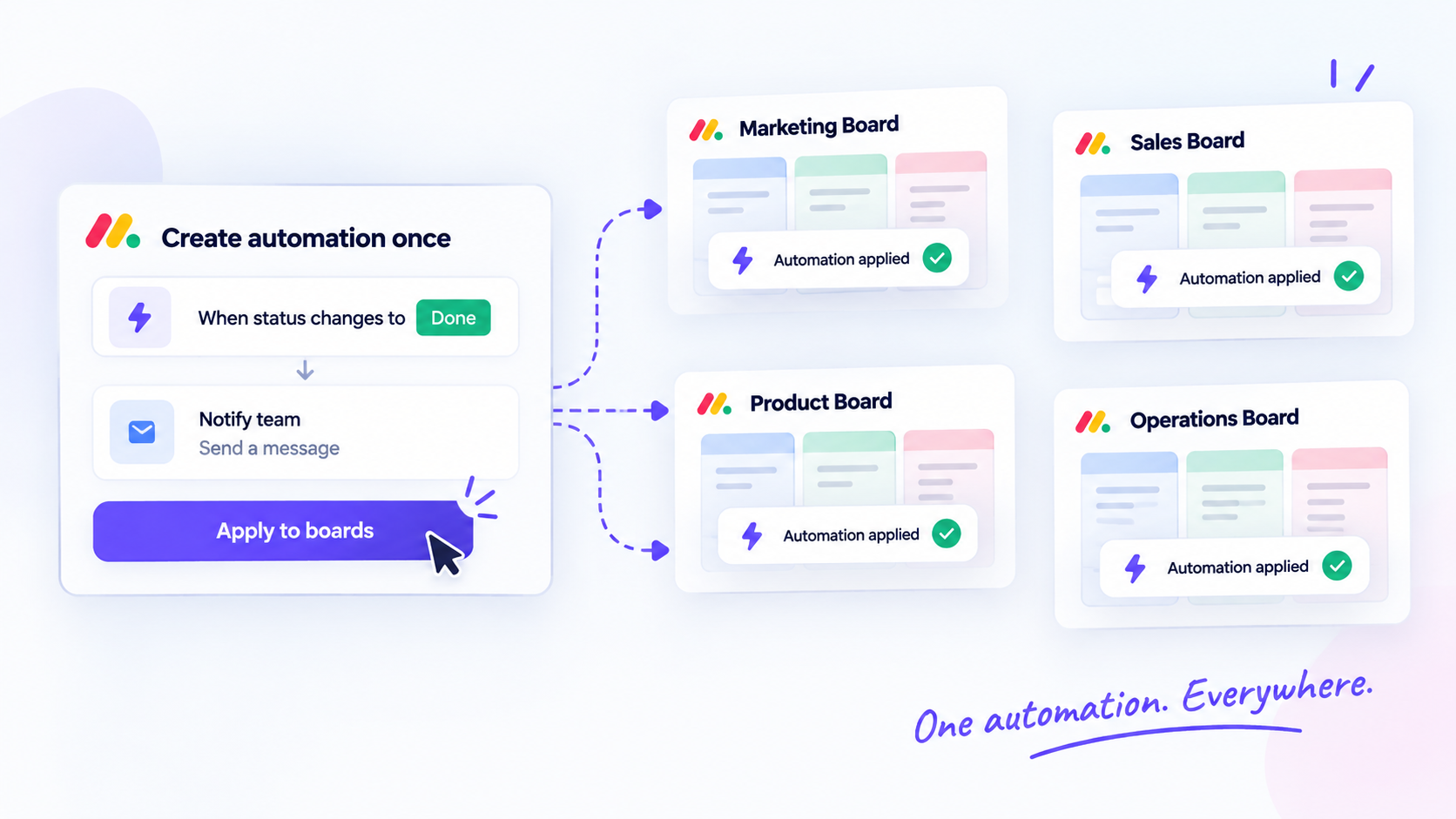
With Multi Board Automations you:
- Compose a familiar when / only if / then sentence inside monday.com.
- Select every board that should share the process.
- Launch only after each board is ready (missing columns or labels are flagged).
- Inspect every execution in Run History.
The app opens as a monday.com workspace view. The header shows your plan plus counters for enabled rules, running rules, and boards per rule. Executions recorded by this app do not consume the monday.com action quota.
Where you work
The workspace view has four tabs:
- Rules — create, search, filter, enable, duplicate, and delete automations.
- Recommendations — scan workspaces and apply matching rules to more boards.
- Run History — inspect queued, succeeded, failed, and skipped runs.
- Webhooks — review subscriptions and clear leftover webhooks.
Getting Started
Open Multi Board Automations from a monday.com workspace view after you add the app to your account.
Early access
Marketplace listing and 1-click install URLs are not public yet. Request access from the Multi Board Automations product page.
A walkthrough video is available: How Multi Board Automations works.
Connect the account
The first person to open the view connects monday.com through OAuth. The app needs permission to read and write boards, manage webhooks, post updates, send notifications, and (for Categorize with AI) consume AI. Exact scopes appear on the monday.com consent screen. See Permissions and Data.
Create a rule
From the Rules tab, create a new automation. The wizard has three steps:
- Boards — choose every board that should run this recipe.
- Automation — build the sentence: when this happens, only if these conditions, then these actions.
- Launch — confirm board readiness, then create the automation.
You cannot leave Boards until at least one board is selected. You cannot open Launch until the trigger is complete and at least one action is filled.
Name the automation
The title is editable at the top of the wizard. If you leave it blank, the app suggests a name from the sentence when you create the rule. Confirm or edit that name, then create.
After save, the rule appears on the Rules list. Enable it when board health is resolved. Each selected board fires the rule on its own events.
Selecting Boards
A rule only runs on the boards you attach to it. Selection happens in the wizard Boards step, from Add boards on an existing rule, and from the Recommendations tab.
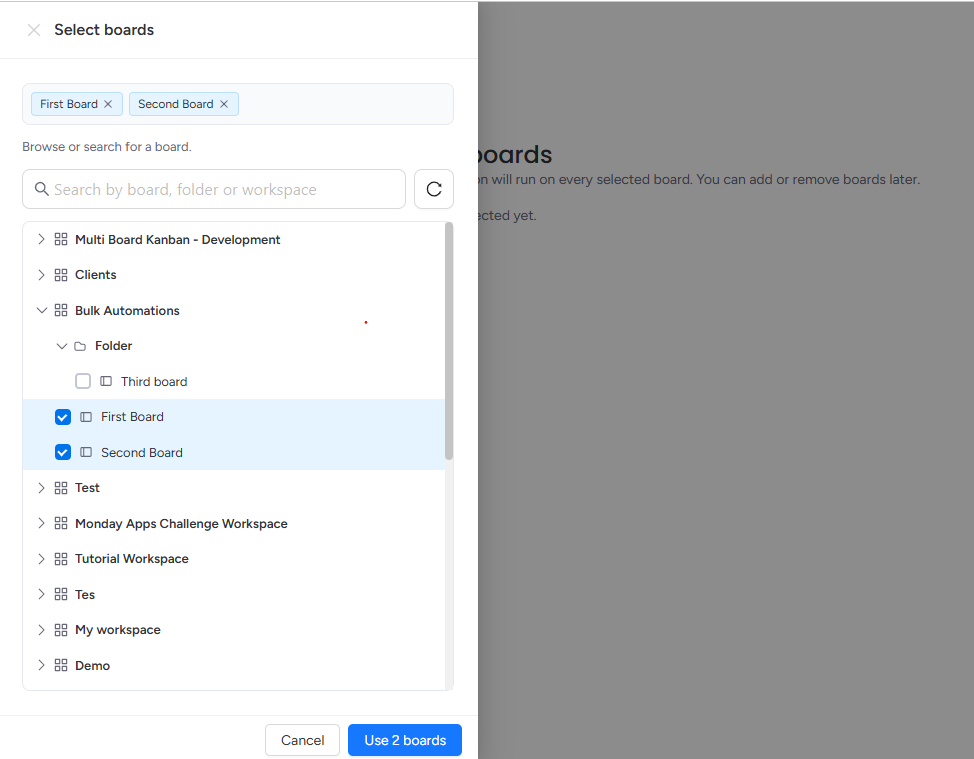
Picker and removal
Open the board picker to search and select boards. Remove a board from the wizard list if it should no longer follow the recipe. Paths next to each board show the workspace and folder so similarly named boards stay distinct.
Independent firing
The recipe is stored once. When an event happens on a selected board, that board runs the rule by itself. Other selected boards are not updated unless they also receive their own matching event.
Board health on the list
The Rules list shows health for the boards on each rule: resolved, needs attention, or error. You cannot enable a rule until every attached board is resolved and the rule has at least one action. See Column Matching and Board Readiness.
Building the Sentence
The Automation step uses a sentence builder: when a trigger happens, only if optional conditions pass, then one or more actions run.
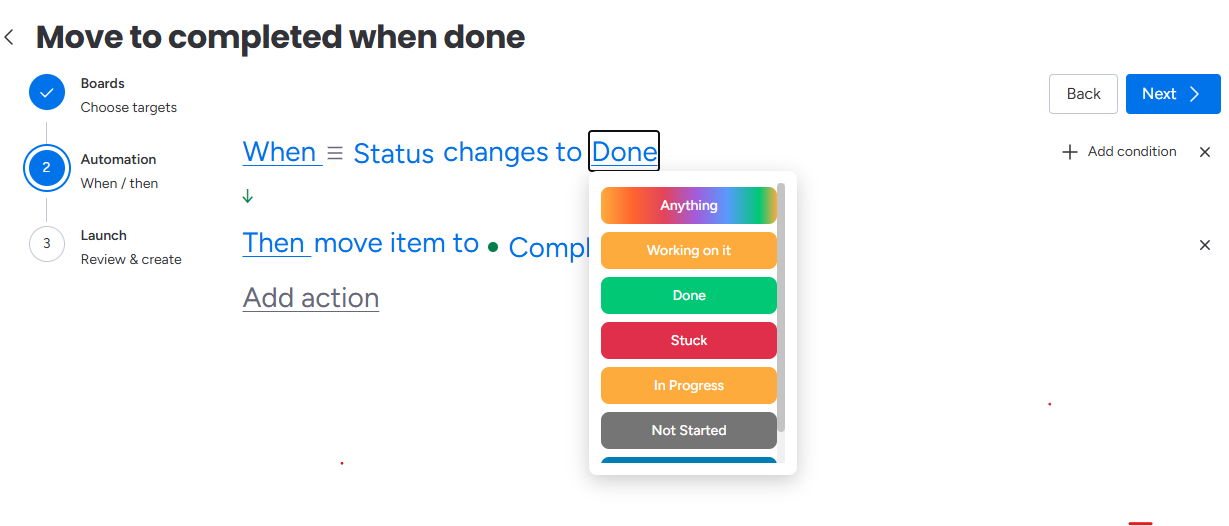
Click a token to pick from the catalog. Column tokens create slots that later map to each board’s columns by title and type.
You can add several conditions and several actions. Actions run in order on the triggering item (or its parent, when a subitem trigger is in use).
The suggested rule name is generated from this sentence. See Triggers, Conditions, and Actions for every catalog entry.
Triggers
A trigger is the event that starts a run on a selected board.
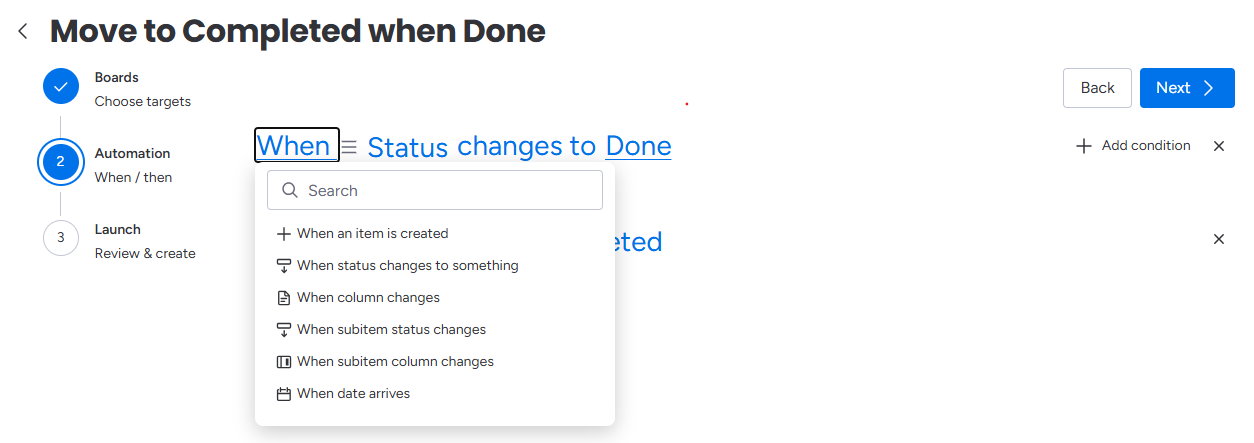
Recipes
- When an item is created
- When status changes to something — pick a status column and a target label, or Anything
- When column changes — any non-status column value change
- When subitem status changes — status on a subitem
- When subitem column changes — a non-status column on a subitem
- When date arrives — a date column, offset (on / before / after), time of day, and timezone
Status values
For status recipes, choose a specific label or Anything. Anything fires on every change of that status column.
Date arrives
Date-arrives uses the item’s date column plus the offset, clock time, and timezone you set in the sentence. The scan evaluates those dates on a schedule; it still only applies to boards attached to the rule.
Subitem triggers
When the trigger is a subitem recipe, some actions can target the subitem or the parent item. Move item and create subitem always act on the parent. See Actions.
Conditions
Conditions are optional only if checks. Every condition must pass for the actions to run. If a condition fails, the run is skipped with reason “Conditions not met”.
Recipes
- If item is in group
- If person is someone
- If number meets condition
- If dropdown meets condition
- If status is something
- If column is empty
- If column is something (other column types)
Operators
Value recipes use is or is not. Empty recipes use is empty or is not empty. Group uses is in.
People, numbers, dropdowns, and status columns have dedicated recipes. Other types use the generic column recipe.
Actions
Actions run in order after the trigger matches and conditions pass.
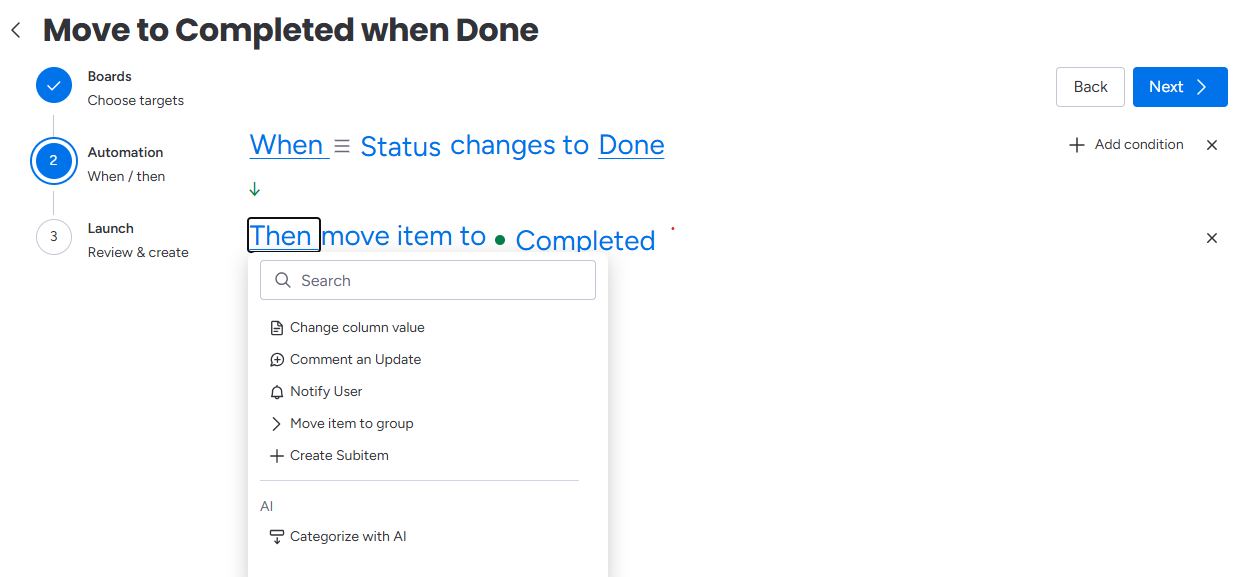
Catalog
- Change column value
- Comment an Update
- Notify User
- Move item to group
- Create Subitem — one or more subitem names
- Categorize with AI — maps sample text from a source column onto labels of a destination status or dropdown
Subitem vs parent
On a subitem trigger, change column, comment, notify, and categorize with AI can target the subitem or the parent item. Move item and create subitem always target the parent.
Categorize with AI
Pick a source column (the text to classify) and a destination status or dropdown. Optional instructions steer the model. On the Launch step, paste sample text to preview the chosen label, confidence, and rationale.
AI access
If the recipe includes Categorize with AI, launch stays blocked until someone on the account grants AI access. Use the grant control on the launch step. That request is separate from the original app install.
Column Matching and Board Readiness
Each token in the sentence that names a column becomes a slot. On every selected board, the app maps that slot to a real column by title and type, not by monday.com column ID.
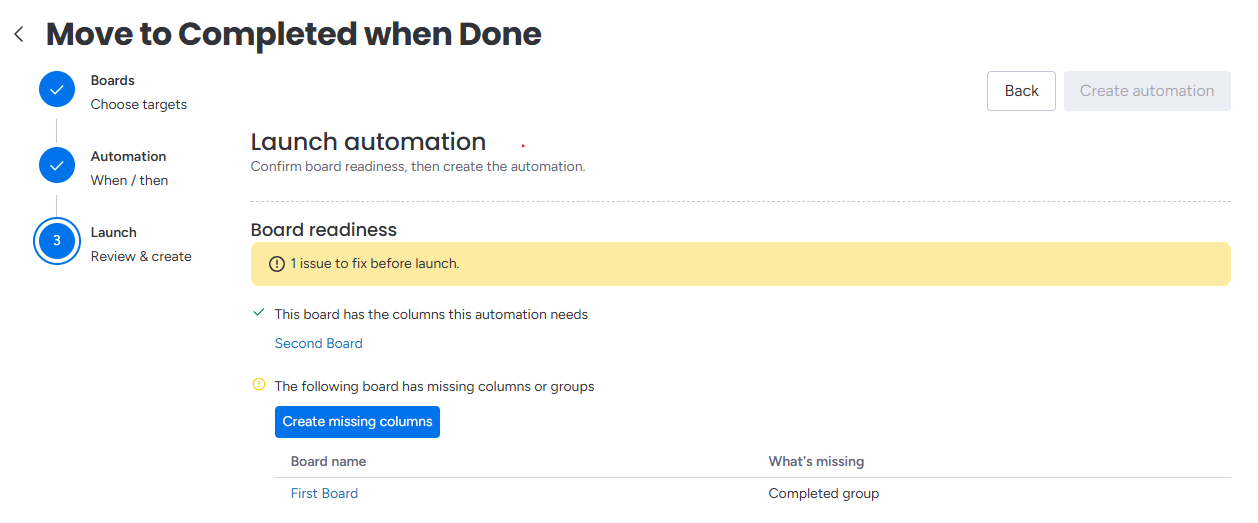
How matching works
- Prefer a column with the same type and the same title.
- If titles differ, a same-type column can still map (type-only).
- Status and dropdown slots also check labels. Missing labels are called out before launch.
- Group tokens look for matching group names on that board.
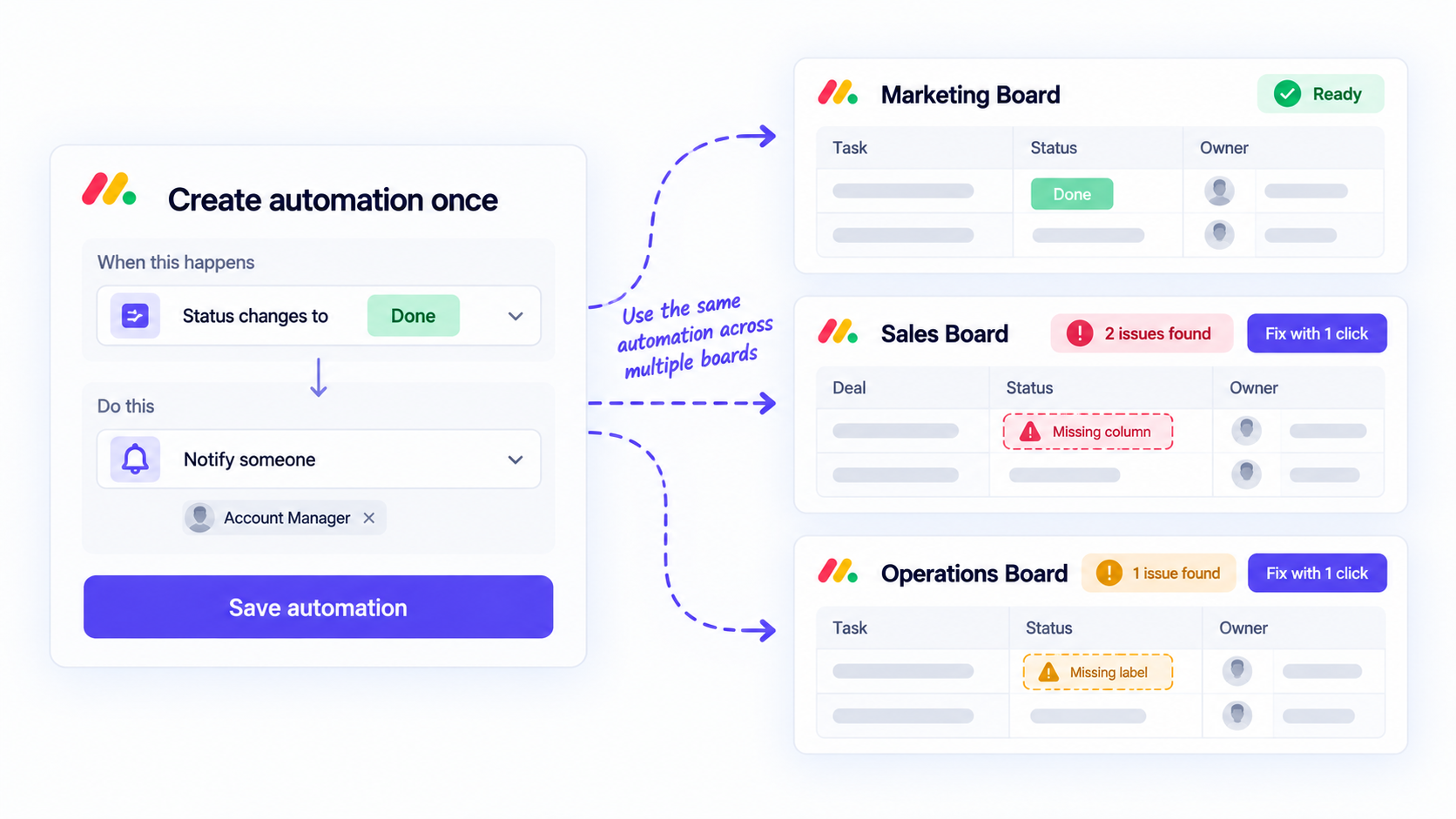
What blocks launch
Launch stays pending while any selected board:
- is missing a required column
- is missing a group the rule uses
- is missing a status or dropdown label the rule uses
- still needs a manual pick when several columns of the same type could match
You can open a board from the readiness table, add the missing column or label, then refresh. Optional columns that are missing skip that step on that board instead of blocking the whole rule.
After launch
The Rules list repeats the same health: resolved, needs attention, or error. Enable a rule only when every attached board is resolved.
Managing Rules
The Rules tab is the home list for every automation in the account.
Categories
Every rule can belong to a category:
- Notify and Reorganize are built-in system categories.
- You can create custom categories.
- Rules with no category appear as Uncategorized.
Assign a category from the rule row or from the wizard. Filter the list by category, including Uncategorized.
Filters and search
- Search by rule name.
- Filter by status (enabled, paused, and related states).
- Filter by board to show only rules already applied to that board.
Row actions
Enable or pause a single rule with the toggle (enable requires resolved board health). Duplicate copies the recipe so you can attach different boards. Delete removes the rule configuration; monday.com items are untouched.
Pause all rules
Pause all rules stops every enabled rule in the account. Settings stay in place. Webhooks stay subscribed so resume is immediate. A banner names who paused and when. Run history marks the pause window.
While paused, saving a rule still stores it; it will run after you resume.
Webhooks
The Webhooks tab lists subscriptions the app created. While rules are paused, webhooks stay connected and show as subscribed without executing. You can clear leftover webhooks that no longer belong to an active rule.
Recommendations
The Recommendations tab finds boards that already match rules you wrote, then lets you apply those rules without rebuilding them.
Scan does not use the monday.com action quota.
Scan
- Select one or more workspaces.
- Click Scan for Boards.
- The table lists boards under their workspace and folder (or by last updated).
Progress shows how many board structures have been read.
Match quality
For each board, matching rules are grouped by category. Reasons include:
- Uses this board’s matching column or groups (exact title)
- Same column with missing labels
- Mapped to a same-type column whose name differs
- Missing a required column
- Optional column missing (that step will not run on this board)
Add missing labels on the board before you apply a rule that needs them.
Apply, skip, restore
Open a board to review matching rules, select which to apply, and apply them. Skip hides the board from the default list; Show skipped brings skipped boards back so you can restore them.
Switch By folder and By last updated to change the table order.
Run History
Run History lists every execution across the account.
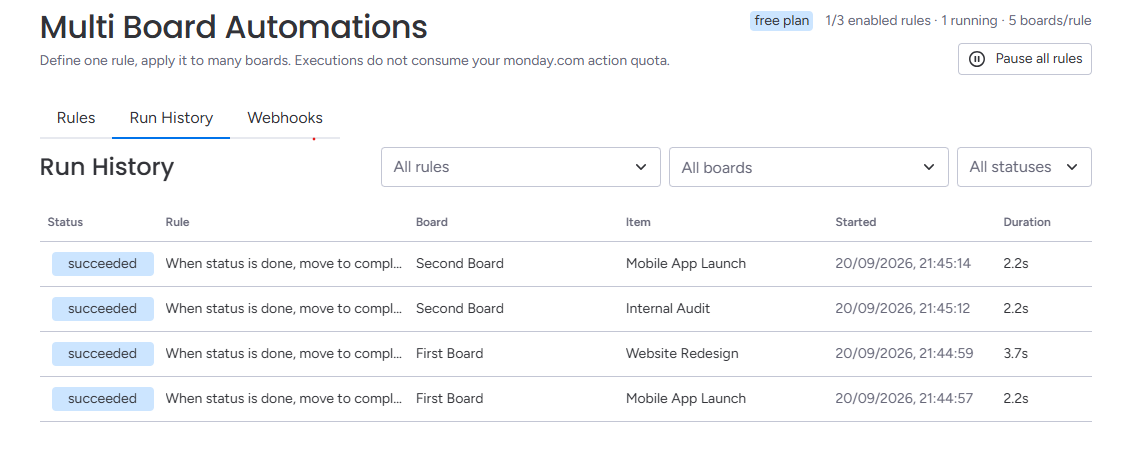
Statuses
- Queued and running — in progress
- Succeeded — all actions completed
- Failed — an action returned an error
- Skipped — the run stopped on purpose (conditions, trigger filter, loop guard, circuit breaker, or a deleted item)
Filters
Filter by rule, status, and board. Open the monday.com item or board from the row when a URL is available.
Pause windows
If someone used Pause all rules, history shows a marker for that window so gaps in activity are explained.
Step detail
Expand a run to see each action, duration, and (for Categorize with AI) the chosen label, confidence, and rationale.
Plans and Limits
Plans are billed through the monday.com marketplace on monthly automation runs. Users are unlimited. Rule categories are unlimited on every published plan.
Plan comparison
| Plan | Monthly price | Runs / month | Notes |
|---|---|---|---|
| Free | $0 | 100 | Unlimited boards and rules. Rules can include boards from multiple workspaces. |
| Pro | $19 | 1,000 | 30-day automation history. Rules can only include boards from a single workspace. |
| Business | $49 | 5,000 | Cross-workspace automation execution. |
| Scale | $99 | 10,000 | Higher monthly run allowance. |
| Enterprise | $199 | 25,000 | Higher monthly run allowance. |
| Unlimited | $299 | Unlimited | Unlimited automation runs. |
14-day free trial
Paid plans include a 14-day trial so you can test a higher monthly run limit before upgrading.
What the app header shows
The workspace header shows the current entitlement chip plus counts such as enabled rules and boards per rule. Those counters come from the account entitlement the app is currently using. Treat the table above as the published marketplace comparison.
Runs vs monday.com action quota
Executions created by Multi Board Automations are counted against this app’s monthly run allowance. They do not consume the monday.com native action quota. Native automations you still keep on individual boards continue to count toward that monday quota.
Permissions and Data
monday.com remains the source of truth for boards, items, and column values. Rule definitions, categories, slot mappings, and run history are stored on Convex.
OAuth scopes
When you connect the account, monday.com asks for:
me:read— identifies the signed-in userboards:readandboards:write— read structure and apply actionsworkspaces:read— list workspaces for the picker and Recommendations scanwebhooks:readandwebhooks:write— subscribe to board eventsupdates:readandupdates:write— comment an updatenotifications:write— notify a userai:consume— Categorize with AI
Exact wording is always on the monday.com install screen.
AI access
Categorize with AI needs an additional AI grant. If it is missing, the launch step asks you to grant access before you can create or save that rule.
Uninstall
Uninstalling removes the app, unsubscribes webhooks, and deletes rule configurations. Items, columns, and history on your monday.com boards remain untouched.
Troubleshooting
Answers to common issues and how to get help.
Why can’t I create or enable a rule?
Launch and enable stay blocked until every selected board is resolved and the sentence has a complete trigger plus at least one action. Add missing columns, groups, or labels, then refresh readiness. If the recipe uses Categorize with AI, grant AI access first.
Why was a run skipped?
Open the run in Run History and read skipReason:
- Conditions not met — an only-if check failed.
- Trigger filter — the event did not match the status or column you selected.
- Loop guard: recent self-write detected — the rule’s own write would have fired the same rule again. That run is skipped on purpose.
- Circuit breaker triggered — rule auto-paused — too many runs hit the same item in a short window, so the rule paused itself.
- Item not found — the item was deleted before the run finished.
monday.com API limit banner
A warning banner appears when monday.com has paused API calls:
- Daily API limit — the account used today’s monday.com request budget. Loading item names, scanning boards, and runs that call monday.com wait until the shown time. This is account-wide across every monday.com app, and it is not this product’s monthly run allowance.
- Query budget / rate limit — monday.com paused queries for a few seconds; the screen retries.
Getting support
- Live Chat: Use the chat bubble on this website or inside the app.
- Contact Support: contact@thoughtflow.io
- Feature Feedback: Feedback portal
- Early access: Product page